AMAPI: Configure Android Management API Integration
The Android Management API page, available in the Settings section, under Android Settings, allows you to provide information required to integrate KACE Cloud with the Google Android Management API (AMAPI).
There are two ways to integrate AMAPI with KACE Cloud:
- KACE Managed provides the quickest setup and does not require configuring a Google Console project, service account, or private key.
- Select Advanced when your organization needs to use its own Google Console project and credentials.
The KACE Managed option uses a single Google Console project shared by all KACE Cloud customers, with a separate Android Enterprise for each customer. KACE Cloud support teams can access the project for troubleshooting but cannot view device or app information. Device and app information is not stored in the shared Google Cloud project itself. The project simply connects the Android Management API (AMAPI) to each customer's KACE Cloud tenant.
Prerequisites
For both methods:
For Advanced setup only:
- Google Console project
- Project ID, service account, and private key JSON file.
KACE Managed Project
Using a KACE Managed Project is the recommended approach for AMAPI integration. First, click the KACE Managed button.
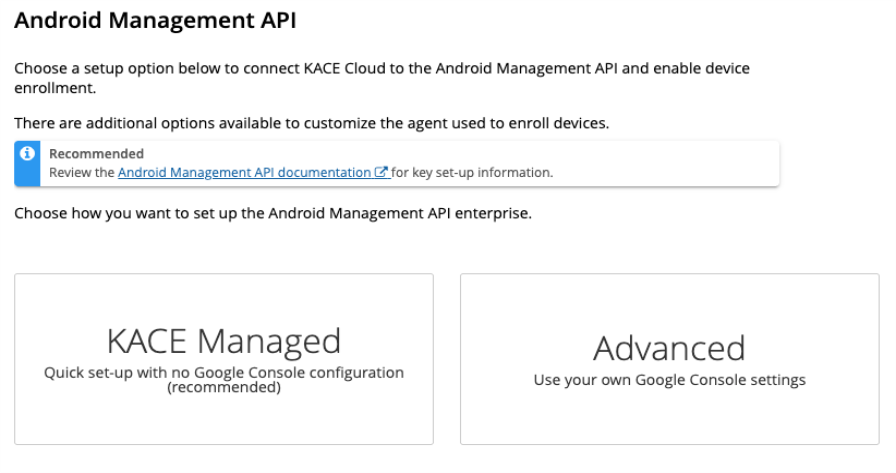
Next, sign in with your Google account and enter the requested details. You will then be redirected back to KACE Cloud to finish creating your enterprise.
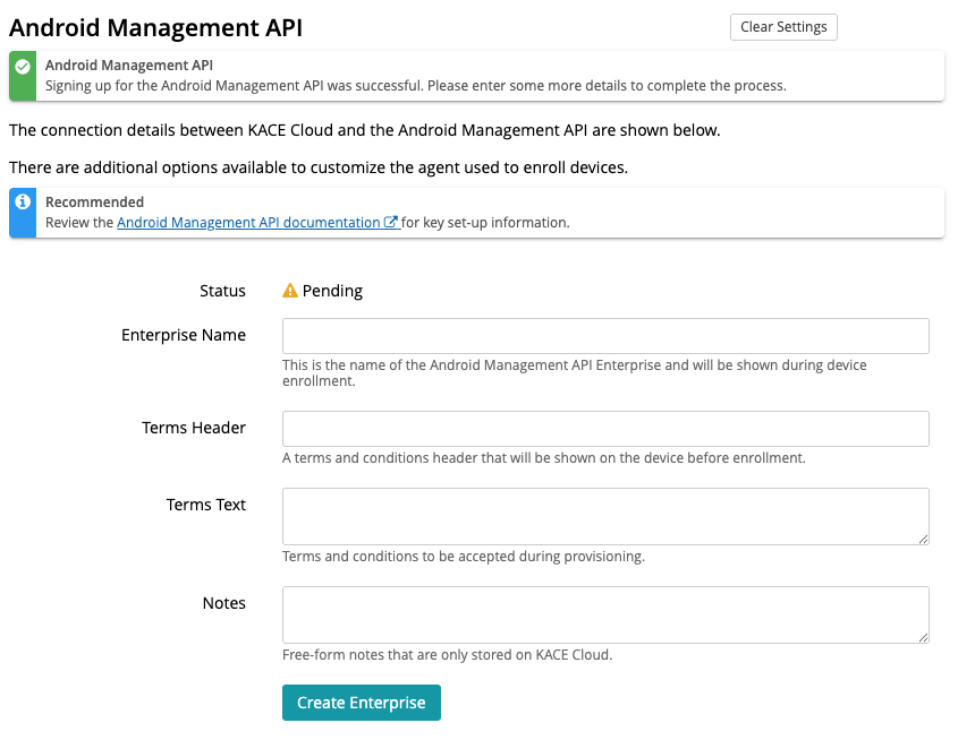
Next, some details are required before devices can be enrolled.
| Setting | Description |
|---|---|
| Enterprise Name | Your enterprise name. |
| Terms Header | The header of your enterprise terms. |
| Terms Text | The text of your enterprise terms. |
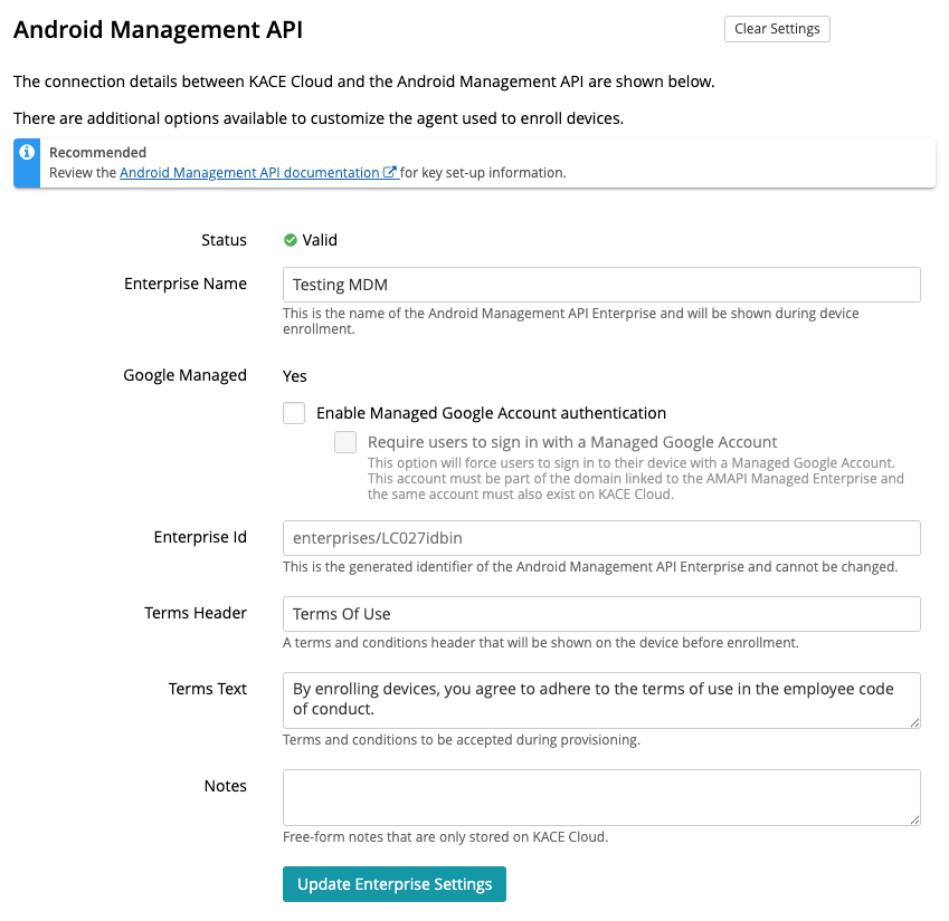
Advanced Setup
Before you can configure the AMAPI settings required for the advanced setup, you must first create and configure a Google Console project. For details, see AMAPI: Set up a Google Console project
You must obtain the following information from your Google Console project:
- Google Project ID
- Google Service Account Name
- Secret Key
- Enterprise ID
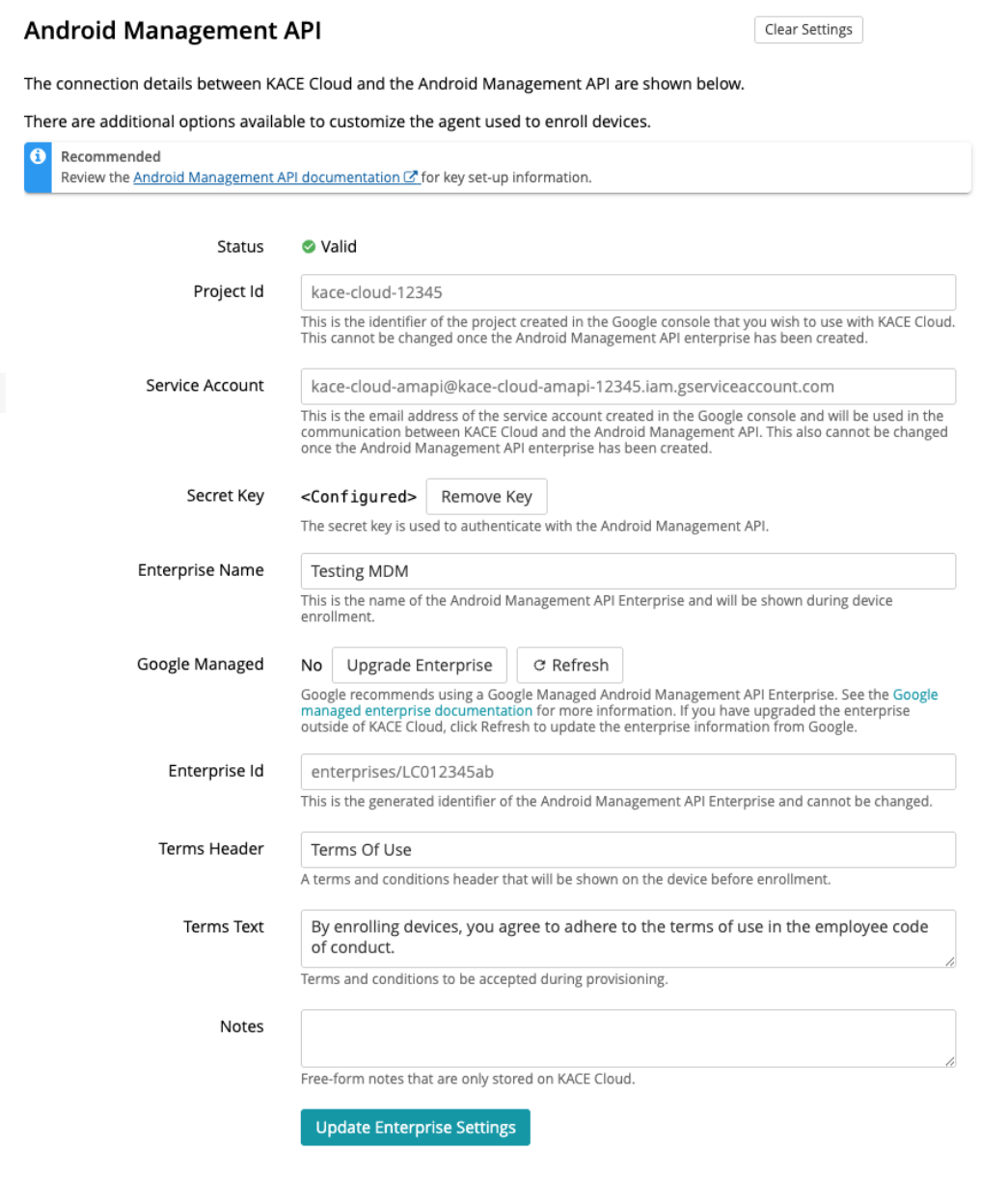
To configure Advanced Android Management API integration:
- Log in to KACE Cloud and go to Settings.
- In the left-hand panel, choose Android Settings > Android Management API.
- On the Android Management API page complete one of the following steps:
- Select Import from Google JSON file, select the generated JSON file, and click Import.
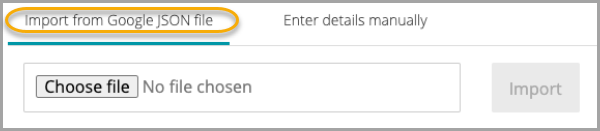
- Select Enter the details manually and type the required settings:
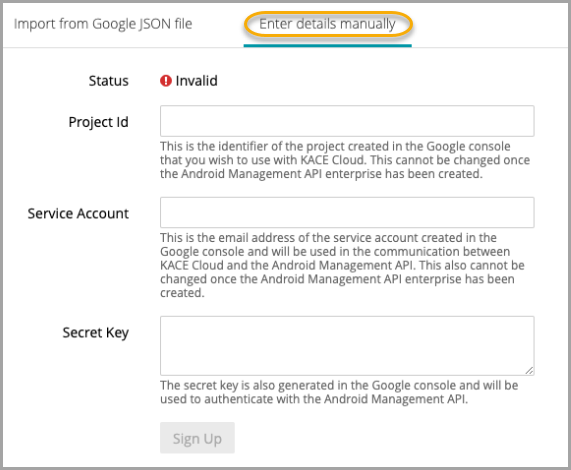
Setting Description Project Id The Project ID from your Google Console project. For details, see AMAPI: Set up a Google Console project. Service Account The Service Account from your Google Console project. For details, see AMAPI: Set up a Google Console project. Secret Key The contents of the private_key field from the JSON file that was downloaded during the creation of the Google Console project. Include the entire private_key field contents, from -----BEGIN PRIVATE KEY----- to -----END PRIVATE KEY----- (you can include the newline '\n' characters). For details, see AMAPI: Set up a Google Console project. - Select Import from Google JSON file, select the generated JSON file, and click Import.
- Click Sign Up.
- In Google, provide the required information to validate your account.
- On the Android Management API page, specify the remaining settings.
Setting Description Enterprise Name Your enterprise name. Enterprise Id The Enterprise ID from your Google Console project. For details, see AMAPI: Set up a Google Console project. Terms Header The header of your enterprise terms. Terms Text The text of your enterprise terms. - When done, click Create Enterprise.
Upgrading to a Google Managed enterprise
Google recommends using a Google managed enterprise. See the Google managed enterprise documentation for more information.
If the enterprise is not Google managed, two buttons are available:
- Upgrade Enterprise — redirects you to Google to convert the existing enterprise into a Google managed enterprise.
- Refresh — retrieves the current enterprise information from Google. Use this if you upgraded the enterprise outside of KACE Cloud and the details in KACE Cloud are out of date.
Managed Google Account authentication
Managed Google Account authentication options are only available for Google managed enterprises. There are two options.
- Select Enable Managed Google Account authentication to have the Google-provided Android agent give the device user an option of logging in with a Managed Google account at enrollment.
- Optionally select Require users to sign in with a Managed Google Account which will force the device user to sign in with a Managed Google account at enrollment. This account must be part of the domain linked to the AMAPI Managed Enterprise and the same account must also exist on KACE Cloud. Note that there is a Kiosk enrollment procedure that can bypass any Managed Google requirements in the Android enrollment options in the device view.
Changing Enterprise Settings
Note that changing any of the AMAPI enterprise settings results in any enrollment or silent enrollment tokens becoming invalid. This means any Android Zero Touch profiles or Samsung Knox settings will need to be updated. See the Android Zero Touch and Samsung Knox sections for more information.
Next steps
- Optional. Integrate with automated enrollment providers:
- Enroll your Android devices.
- If your target devices need to use certificates, install the KACE Cloud AMAPI Companion app.